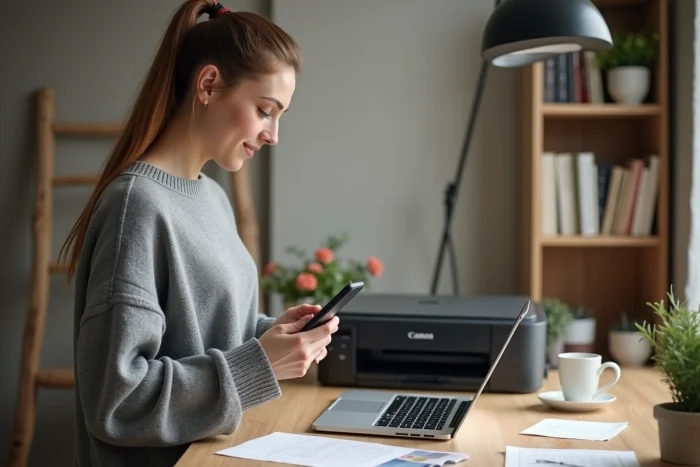
Connecting a mobile phone to a Canon printer involves at least three distinct protocols, each with its compatibility and configuration constraints. Wi-Fi network, direct connection without a router, native AirPrint on iOS, Android printing service: the choice depends as much on the printer model as on the smartphone’s operating system. This article compares these methods to identify the one that requires the fewest steps and offers the best reliability in daily use.
Wi-Fi, direct connection, and AirPrint: comparative table of Canon connection methods
| Method | Network prerequisites | App required | Compatible with Android | Compatible with iOS | Average number of steps |
|---|---|---|---|---|---|
| Wi-Fi via router | Active Wi-Fi router | Canon PRINT or system service | Yes | Yes | 4-5 |
| Direct connection (without router) | None | Canon PRINT | Yes | Yes | 5-6 |
| AirPrint | Active Wi-Fi router | None | No | Yes | 2-3 |
| Canon Print Service (Android) | Active Wi-Fi router | System service enabled | Yes | No | 3-4 |
| WPS (Wi-Fi Protected Setup) | WPS compatible router | Canon PRINT or system service | Yes | Yes | 2-3 (pairing only) |
The table reveals a clear gap. AirPrint remains the shortest method on iPhone, with two to three actions and no third-party app to install. On Android, the Canon Print Service integrated into the system approaches this simplicity, provided the service is activated in the phone’s settings.
The direct connection, often presented as the universal solution, actually adds one to two additional steps. It remains relevant when no router is available, but it cuts off the smartphone’s internet access during printing.
To delve deeper into each procedure and resolve common blockages, a detailed tutorial allows you to connect a mobile phone to a Canon printer by following step-by-step instructions tailored to each Pixma model.
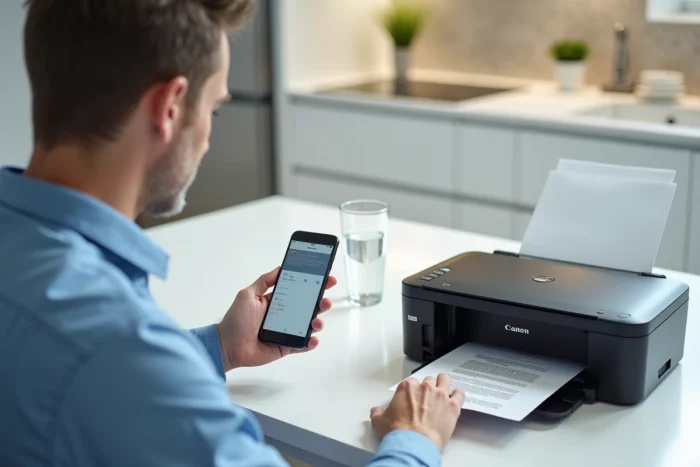
Canon PRINT vs native Android and iOS services: which mobile printing tool to choose
Canon promotes the use of its Canon PRINT Inkjet/SELPHY app, available on Android and iOS, regularly updated to expand compatibility with recent models and improve automatic detection on the home Wi-Fi network. This app manages printing, scanning, and copying from the phone.
Meanwhile, mobile operating systems have developed their own standards, which reduce dependence on proprietary apps.
On iPhone and iPad: AirPrint without installation
Most recent Canon Wi-Fi printers are compatible with AirPrint. Specifically, the printer appears in the “Print” menu of any iOS app as long as it shares the same wireless network as the phone. No specific configuration, no driver to download.
Canon PRINT remains useful on iOS for accessing advanced printer settings (ink levels, head cleaning, photo printing with cropping). For standard document or web page printing, AirPrint is sufficient.
On Android: the integrated Canon Print Service
On recent versions of Android, Canon relies on a system printing service. Once the Canon Print Service is activated in the phone’s settings, printing becomes possible from Gmail, Chrome, Google Photos, or any app that supports the Android printing service.
The Canon PRINT app retains an advantage for mobile scanning and for printers connected in direct mode (without a router). However, to print a PDF received by email, the system service avoids opening an additional app.
Canon direct connection without Wi-Fi router: use cases and technical limits
The direct connection (called “Wireless Direct” or “Direct Wireless Connection” in Canon menus) creates a Wi-Fi access point on the printer itself. The phone connects to this network as it would to any Wi-Fi hotspot.
This method meets a specific need: printing in a location without Wi-Fi, such as a construction site, trade show, or temporary housing. It works on most Pixma models equipped with Wi-Fi.
- Activate the direct connection from the printer’s control panel (network settings menu or Wi-Fi icon depending on the model)
- On the phone, go to Wi-Fi settings and select the network displayed by the printer (format type “DIRECT-xxxx-Canon…”)
- Enter the password displayed on the printer’s screen, then start printing via Canon PRINT or the system service
The smartphone loses its internet connection for the entire duration of the pairing. On Android, some models automatically switch to mobile data, but this behavior varies by phone manufacturers. On iPhone, the internet disconnection is systematic as long as the Wi-Fi points to the printer.
To revert to standard network mode after printing, you must change the printer’s network settings from its control screen, following the reverse procedure.

Failure to detect the Canon printer on the network: the most common causes
The printer does not appear in the list of available devices. This issue arises in the majority of support requests related to Canon printers connected via Wi-Fi.
- Phone and printer on two different Wi-Fi bands: many routers broadcast a network on 2.4 GHz and another on 5 GHz. Some Canon printers only connect on 2.4 GHz. If the phone is on the 5 GHz band, the two devices cannot see each other
- The printer’s sleep mode sometimes disables the Wi-Fi module. Pressing the power button or opening the lid reactivates the network connection
- An active VPN on the smartphone may isolate local network traffic and prevent printer detection
- On Android, the Canon Print Service must be explicitly enabled in Settings, then Connection, then Printing. Without this activation, the phone does not search for Canon printers on the network
Checking the Wi-Fi band of the phone resolves most of these situations. On recent routers, it is sufficient to temporarily force the smartphone’s connection to the 2.4 GHz network to initiate detection.
The WPS (Wi-Fi Protected Setup) offers a quick alternative for the initial pairing between the printer and the router: pressing the WPS button on the router and the corresponding command on the Canon printer simultaneously establishes the network connection without manual entry of the Wi-Fi password. The phone then automatically finds the printer on the shared network.
Ultimately, the choice of connection method depends on the hardware context. On a stable home network with an iPhone, AirPrint makes any other configuration unnecessary. On Android, activating the Canon Print Service once opens printing from almost all applications. The direct connection remains a reliable fallback in the absence of a router, at the cost of a temporary interruption of the phone’s internet access.